

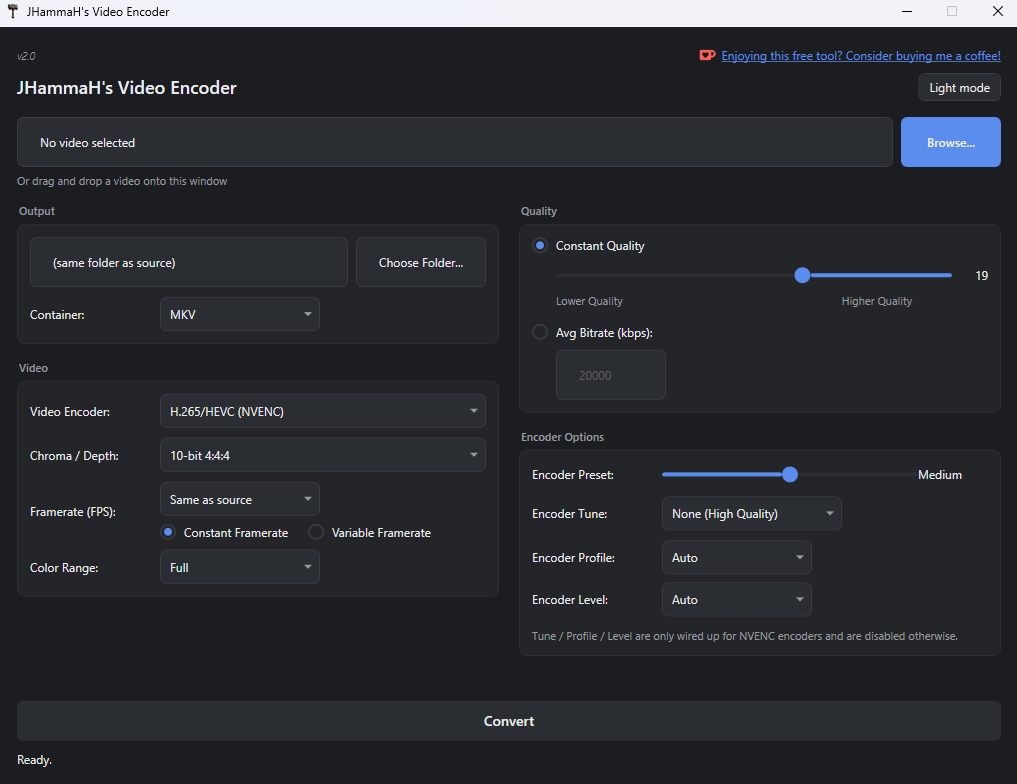
JHammaH’s Video Encoder – A HandBrake Alternative that supports 4:2:2 and 4:4:4 chroma subsampling!
Get a free HandBrake alternative for Windows that encodes HEVC, H.264, AV1, and ProRes with 4:2:2 and 4:4:4 chroma subsampling!
JHammaH’s Video Encoder was built because HandBrake couldn’t output 4:2:2 or higher chroma subsampling. Drag in your videos, choose your encoder, chroma, and bit depth, and convert, using your NVIDIA, AMD, or Intel GPU or your CPU. The program checks your PC and grays out anything it can’t run. FFmpeg is included, so there’s nothing else to install.
- One-Window HEVC, H.264, AV1 & ProRes Encoding
- 4:2:0, 4:2:2 & 4:4:4 Chroma in 8-bit and 10-bit
- NVIDIA, AMD, Intel & CPU Encoders With Automatic Hardware Detection
- Batch Conversion and Target File Size
- Drag and Drop, Free With No Activation
Description
A Free HandBrake Alternative That Does 4:2:2 and 4:4:4
JHammaH’s Video Encoder is a free HandBrake alternative for Windows. I made it because HandBrake couldn’t output 4:2:2 or higher chroma subsampling. So if you need more color detail than standard 4:2:0 video keeps, this fills the gap. Pick an encoder, choose your chroma and bit depth, and convert. HEVC, H.264, AV1, and ProRes all sit in one simple window.
It Checks Your PC, So You Only See What Works
When the program opens, it tests each GPU encoder on your computer with a tiny real encode. Anything your hardware can’t run is grayed out, and hovering over it tells you why. This covers NVIDIA, AMD, and Intel graphics, including the integrated graphics built into many laptops and CPUs, such as Intel UHD and Iris Xe, or Radeon graphics in Ryzen chips. The program then opens on the best encoder that works on your PC. It tries NVIDIA first, then AMD, then Intel, and falls back to the CPU if there is no usable GPU. The results are saved, so later launches are instant. A Re-check button tests again after a driver update.
Chroma and Bit Depth You Can Choose
Chroma subsampling decides how much color detail a video keeps. Most encoders only offer 4:2:0. This one lets you go higher, but what you get depends on the encoder you pick:
- NVIDIA HEVC: 8-bit and 10-bit, in 4:2:0 and 4:4:4.
- NVIDIA H.264: 8-bit, in 4:2:0 and 4:4:4. NVIDIA hardware doesn’t encode 10-bit H.264.
- NVIDIA AV1: 8-bit and 10-bit, in 4:2:0.
- CPU H.264, HEVC, and AV1 (AOM): 8-bit and 10-bit, in 4:2:0, 4:2:2, and 4:4:4.
- CPU AV1 (SVT, the fast one): 8-bit and 10-bit, in 4:2:0.
- AMD and Intel: 4:2:0 only, in 8-bit for H.264 and 8-bit or 10-bit for HEVC and AV1.
- ProRes (CPU): Proxy, LT, Standard, and HQ in 10-bit 4:2:2, 4444 in 10-bit 4:4:4, and 4444 XQ in 12-bit 4:4:4.
The program opens on HEVC at the highest-quality option your hardware allows, which is 10-bit 4:4:4 with a supported NVIDIA GPU. Then, each time you switch encoders, it picks the highest-quality option available.
Fourteen Encoders, Four Codecs
H.264 and HEVC each come in NVIDIA, AMD, Intel, and CPU versions. AV1 has NVIDIA, AMD, and Intel versions too. It also has two CPU options. SVT is fast, while AOM is slow but offers the highest chroma options. ProRes runs on the CPU. AV1 hardware encoding needs a recent generation of graphics card, so those options may be grayed out on older hardware.
Simple Controls
- Quality: choose Constant Quality with a slider, set an average bitrate in kbps, or enter a Target File Size in MB. With a target size, the program picks the bitrate so each file lands just under it, and it re-encodes at a lower bitrate if a file comes out over.
- Encoder Preset: a seven-step slider from Fastest to Slowest, so you can trade speed for efficiency.
- Resolution: keep the source size, pick 4K, 1440p, 1080p, 720p, or 480p, or enter a custom size. Choose whether to stretch, letterbox, or crop to fit.
- Frame rate: keep the source rate, or pick a rate from 23.976 to 60, as constant or variable.
- Color Range: Full or Limited.
- NVIDIA extras: Tune, Profile, and Level, with a short explanation of each choice when you hover over them. These only appear for the NVIDIA encoders.
Batch Conversion
Drag in as many videos as you like, or use Add File(s). Remove a video with the Remove Selected button, or select it and press Delete. Each file shows its own status as the queue runs. Every output is named after the original plus the codec and chroma, like video-prores-lt.mov, and the program never overwrites an existing file. It adds (1) to the name instead and lets you know.
Containers and Audio
Save as MKV, MP4, or MOV. Each encoder starts on the container it is normally delivered in, which is MP4 for H.264, HEVC, and AV1 and MOV for ProRes. The program writes straight into it, with no extra repackaging step. Combinations that can’t work, like ProRes in MP4 or AV1 in MOV, are turned off for you.
For audio, you can keep the original untouched, convert it to AAC, MP3, Opus, AC3, or FLAC at the bitrate you choose, remove it entirely, or downmix it to mono. If you keep the original audio and your container can’t hold it, the program converts it to AAC at 192 kbps and tells you.
Easy to Use
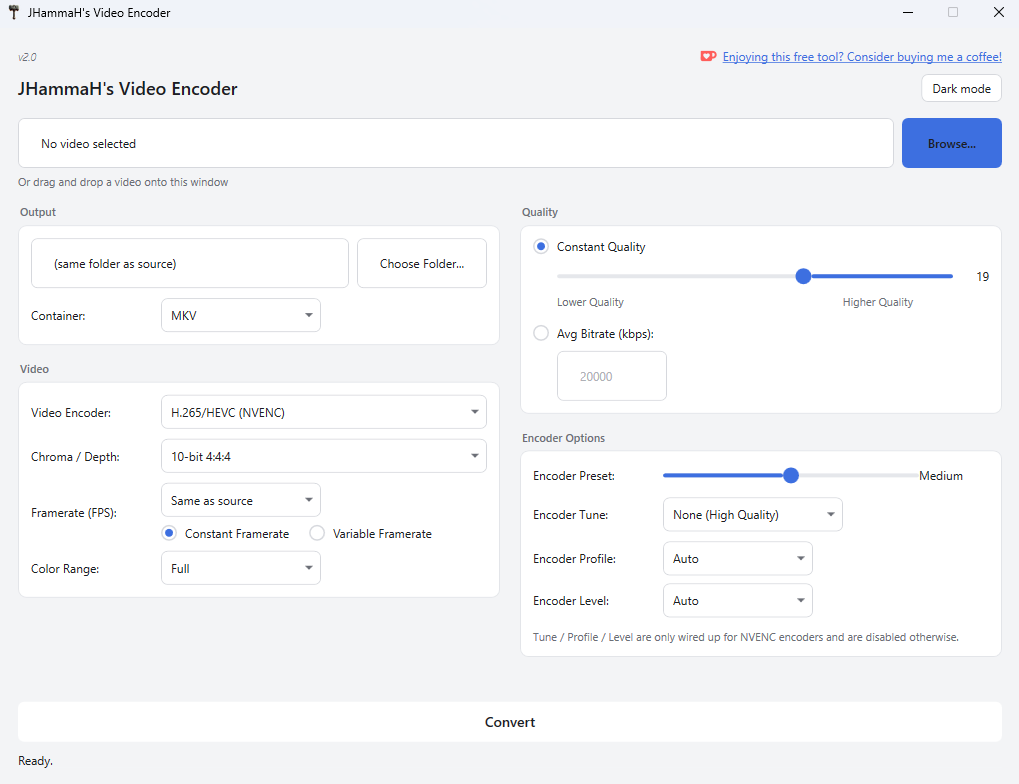
This free HandBrake alternative keeps things simple. Drag videos onto the window, or click Add File(s). It accepts MP4, MOV, MKV, AVI, WebM, M4V, WMV, MXF, and TS files. You can save next to the original or in a folder you choose, and the program remembers that folder. A progress bar shows how far along you are. If you cancel, the program stops the encode and deletes the unfinished file. The window resizes freely or maximizes, and the settings rearrange into one, two, or three columns to fit its shape. Finally, there’s a light theme and a dark theme, and the program remembers your choice.
Powered by FFmpeg
This free HandBrake alternative ships with FFmpeg, so you have nothing else to download or install. HandBrake is a trademark of its respective owner. JHammaH’s Video Encoder has no affiliation with HandBrake, and HandBrake does not endorse it.
System Requirements
OS: Windows 10 / 11 (64-bit)
Software: Nothing else needed. The program includes FFmpeg and the runtime.
Hardware: CPU encoders work on any PC. NVIDIA, AMD, and Intel graphics encoders are detected automatically, and the ones your PC can’t run are grayed out. Keep your graphics driver up to date for the best results.
License: Free, yours forever. No license key or activation required.
Installation Guide
Download the installer.
Run the installer.
(Note for Windows Users: As an indie developer, you may see a blue SmartScreen warning upon installation. Click “More Info” -> “Run Anyway” to install.)
Open JHammaH’s Video Encoder, drag a video onto the window, choose your encoder and chroma, and click Convert. You can use it immediately, with no license key. If you find it useful, there’s an optional support link inside the program, so you can buy me a coffee!
Version Update History:
v2.0 – Optimized for maximum speed and quality
v2.5 – Added many features including more encoding options, video options, audio options, batch encoding, and more.
v2.6 – Added automatic hardware detection, Intel and AMD integrated graphics support, Target File Size encoding, direct encoding into MP4, MOV, and MKV, and a resizable window that rearranges to fit.